
Skip to content
For B2B Deals Whatsapp on 8511558819. Cash on delivery now available.
Wish lists
Wish lists
Cart
0 items

News

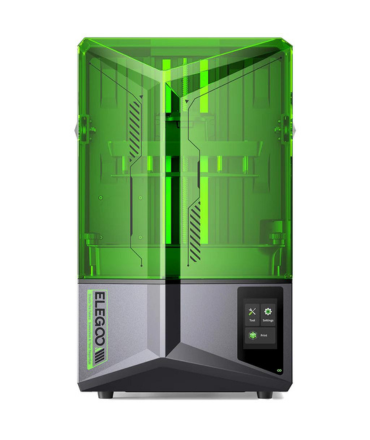
Firmware Update Guide for Elegoo Mars 4 & Saturn 4

by Krunal Makwana 08 Jan 2026

Keeping your Elegoo Mars 4 and Saturn 4 updated ensures stable performance, improved compatibility, and smoother printing. Firmware updates often fix minor bugs, improve touchscreen response, and enhance overall system reliability.

If your printer is stuck on boot, facing USB errors, or showing unusual behavior, a firmware update can usually resolve the issue.

When Should You Update Firmware?

Printer stuck on startup logo

Touchscreen not responding properly

USB files not detected

Print job failing due to system errors

Official firmware release from Elegoo

If your printer is working perfectly, updating is not mandatory. Only update when required.

How to Update Firmware (Mars 4 & Saturn 4)

Download the correct firmware for your exact model from the official Elegoo support page.

Format a USB drive to FAT32.

Copy firmware files to the root directory of the USB (do not place inside folders).

Turn OFF the printer.

Insert the USB drive.

Turn ON the printer.

The machine will automatically detect and install the firmware. Do not remove the USB or power off during the update.

Once completed, the printer will reboot automatically.
Prev post
Next post

Shop the look

Choose options

DIY3D
Sign Up for exclusive updates, new arrivals & insider only discounts

Recently viewed

Edit option
Back In Stock Notification
Compare
Product SKU Description Collection Availability Product type Other details

Choose options

this is just a warning
Login